mobile-canvas is published by Jonathan Dick from Redth/mobile-canvas-ghcp, pinned to 4d3dc0f94d2a00bc0c9bf7bc346e0333f821920d. Review the source before installing.
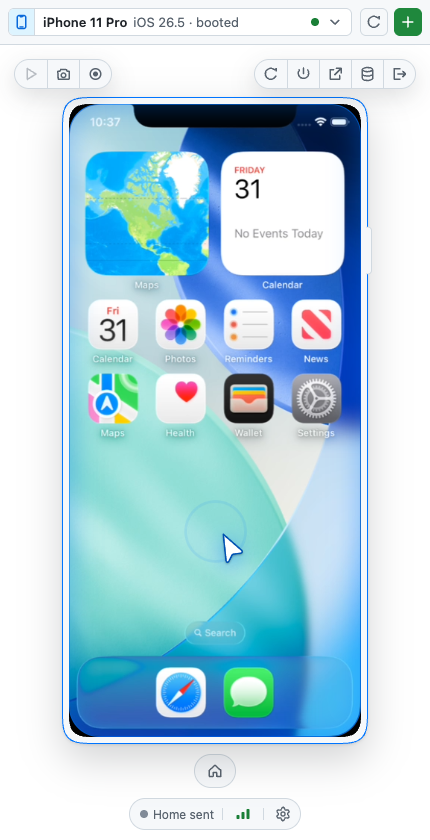
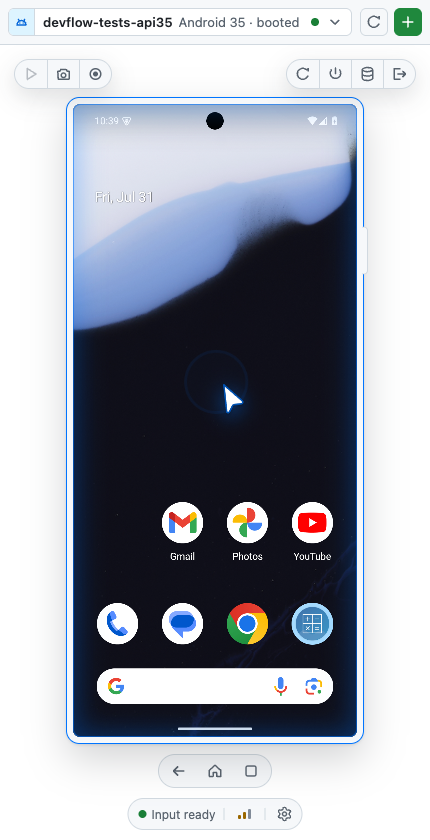
View, create, boot, and interact with local iOS Simulators and Android emulators from a GitHub Copilot canvas or the VS Code Activity Bar — and give your agent the same controls through MCP.
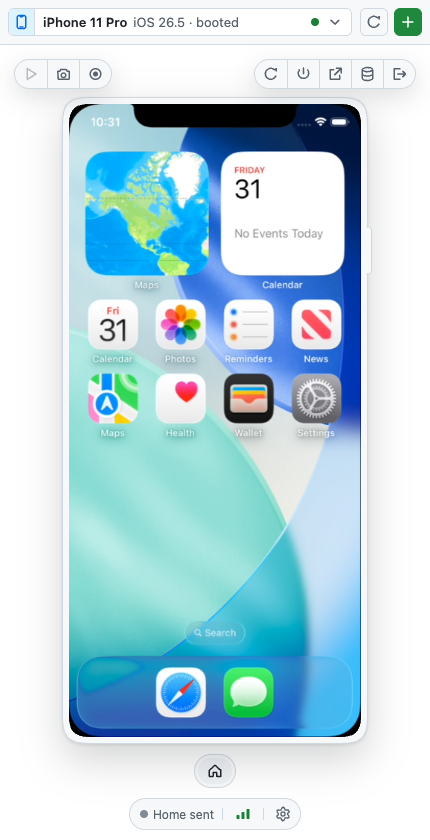 |
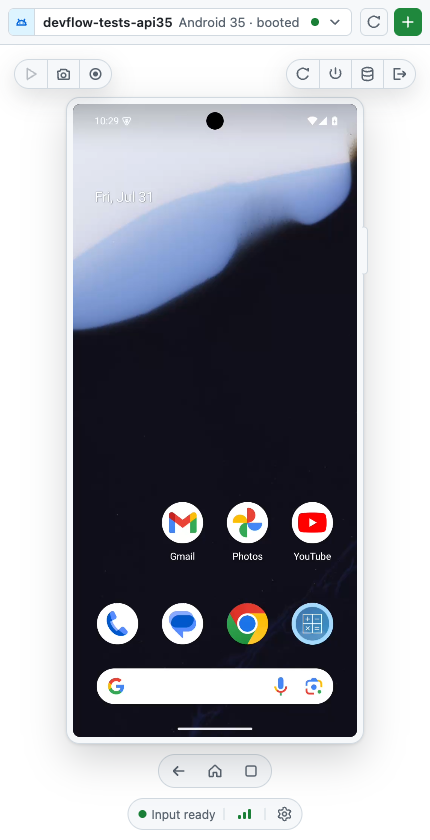 |
https://github.com/user-attachments/assets/bedf866a-331b-463d-971e-b3aae82019ed
Live H.264 video at ~58 FPS (iOS) and ~50 FPS (Android), with real tap, drag, scroll, and keyboard input. Everything runs locally on loopback; nothing is uploaded anywhere.
Getting started
Install it from inside the GitHub Copilot app. The plugin ships the executable itself, so there is no build step, no download, and no Apple developer certificate.
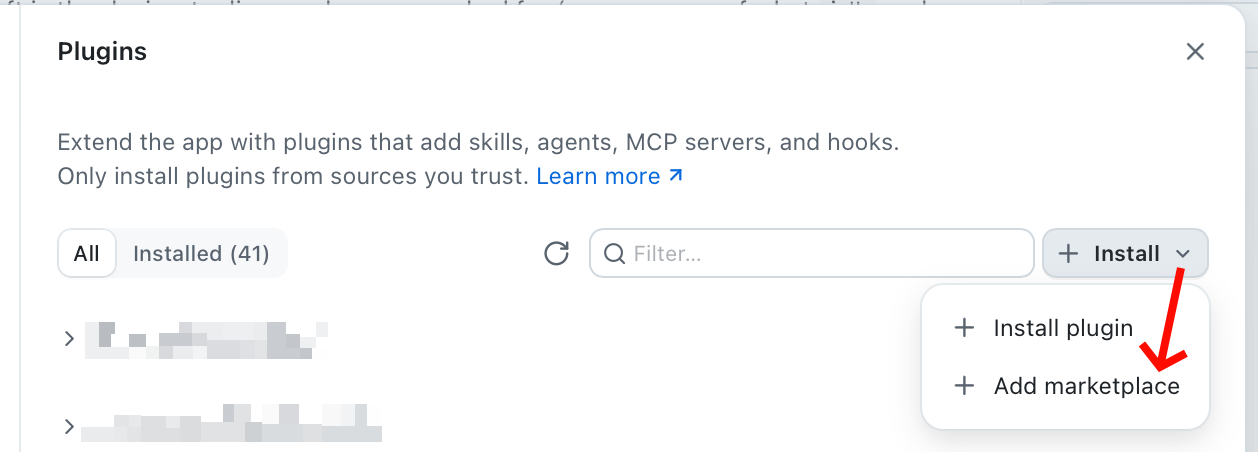
1. Open Plugins, then Install ▸ Add marketplace.
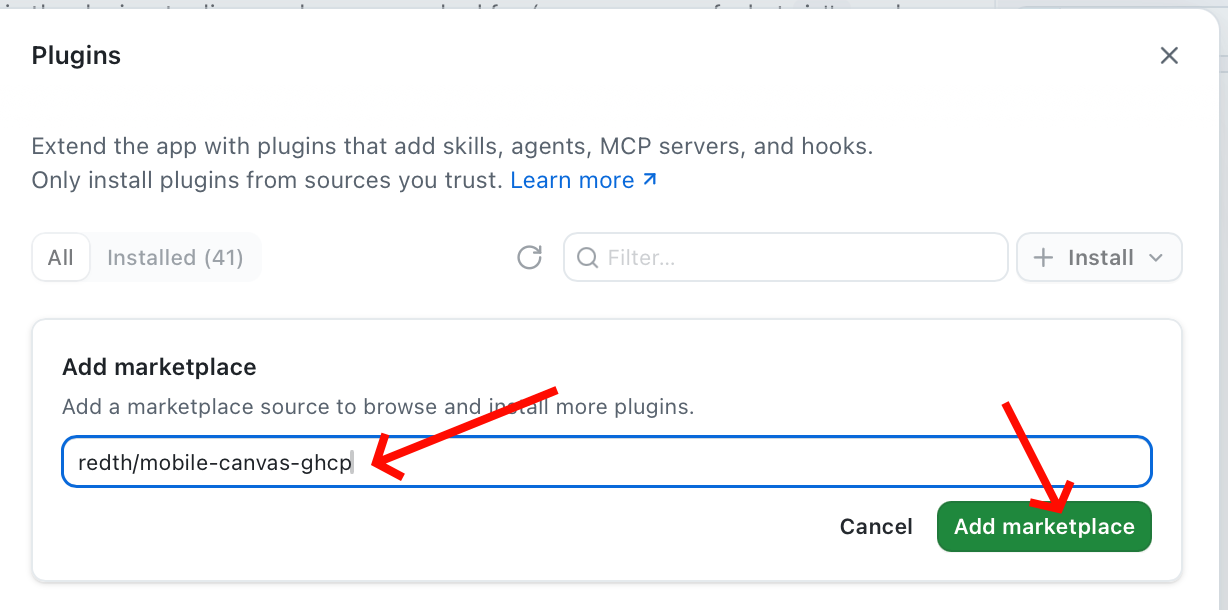
2. Enter Redth/mobile-canvas-ghcp and click Add marketplace.
3. Find mobile-canvas in the list and click Install.
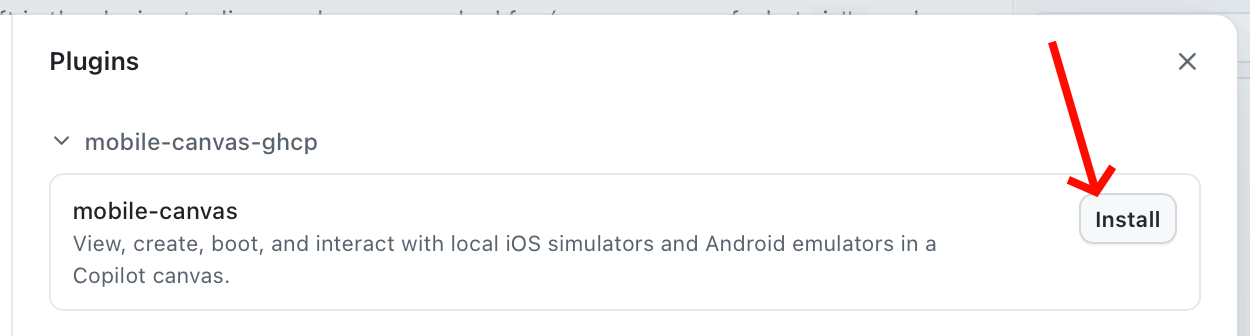
That registers the canvas extension and the MCP server together. Reload Copilot, then ask it to open the Mobile Device canvas — or pick it from the canvas menu — and select a booted simulator or emulator.
Prefer the keyboard? The same two steps:
/plugin marketplace add Redth/mobile-canvas-ghcp
/plugin install mobile-canvas
You still need Xcode for iOS or the Android SDK for Android; see Requirements. For how a plugin install ships a native binary, see How the executable ships.
What it does
Device management
- Discover installed runtimes/system images, device types, and existing devices.
- Create and automatically boot devices headlessly, then restart, shut down, show their native window, erase, or delete them. Showing an Android emulator restarts it with its window enabled.
- Erase and delete always require an explicit confirmation.
Live interaction
- Live Annex-B H.264 decoded with WebCodecs, with automatic PNG polling whenever the stream is unavailable.
- Tap, long press, drag, swipe, wheel scroll, text, keys, and device buttons, mapped correctly at every view scale and orientation.
- PNG screenshots and bounded video recordings written to disk.
Agent control
- 24 MCP tools mirroring the 24 canvas actions one-to-one.
- Every target-changing call returns the full device record, including the
udid/serial you need to hand to a deploy command. - When an agent drives the device, the canvas shows an accent-coloured glow and an animated cursor so a human watching can tell automation from their own input.
 |
 |
Requirements
| Requirement | |
|---|---|
| iOS | macOS, Xcode with Simulator runtimes, and idb_companion (brew install facebook/fb/idb-companion) for input |
| Android | Android SDK with emulator, avdmanager, and adb on PATH |
| Optional iOS fallback | Screen Recording and Accessibility permission for ScreenCaptureKit |
Android emulators must be started with -gpu host. A software-rendered AVD
drops video from ~50 FPS to ~3 FPS.
| Platform | iOS Simulator | Android emulator | Video |
|---|---|---|---|
| macOS | yes | yes | H.264 |
| Windows | no | yes | screenshot polling |
| Linux | no | yes | screenshot polling |
iOS control requires simctl and idb, so it is macOS-only. Android works
everywhere; hardware H.264 encoding currently runs through a macOS helper, so
elsewhere the canvas falls back to screenshot polling.
Other ways to install
From source
git clone https://github.com/Redth/mobile-canvas-ghcp
cd mobile-canvas-ghcp
./scripts/build.sh      # Native AOT binary + universal Swift capture helper
./scripts/install.sh    # Installs into ~/.copilot/extensions/mobile-canvas
Reload Copilot afterwards so it picks up the extension. Source installs register
as Mobile Device (Local) (mobile-device-local), so a development build can
coexist with the marketplace plugin without registering the same canvas ID twice.
As a .NET global tool
For a plain CLI/MCP install without the canvas:
dotnet tool install -g MobileCanvas.Tool
Usage
Ask Copilot to open the Mobile Device canvas, or open it from the canvas picker. Select a running device, or create one from an installed runtime.
From the CLI:
mobile-canvas devices list --json
mobile-canvas devices boot <id> --wait
mobile-canvas input tap <id> --x 100 --y 200
mobile-canvas screenshot <id> --output shot.png
mobile-canvas host status
mobile-canvas guide
Every query command accepts --json and --schema, so output composes safely
with jq.
Agent tools
All 24 tools are available both as canvas actions and as MCP tools named
mobile_device_*:
| Group | Tools |
|---|---|
| Discovery | list, get, catalog, select, get_selected, display |
| Lifecycle | create, boot, shutdown, restart, reveal, erase, delete |
| Input | tap, long_press, swipe, type_text, press_key, press_button, rotate |
| Media | screenshot, recording_start, recording_stop, recording_status |
A typical agent flow is list → select → read udid from the result → deploy
your app to that exact device → drive it with the input tools.
VS Code
Download the VSIX artifact from a successful CI run. Prefer the package matching
your platform (darwin-arm64, darwin-x64, linux-arm64, linux-x64,
win32-arm64, or win32-x64); the larger universal package remains available
for environments where the target is not known in advance. Tagged releases also
provide a tiny universal -thin package that downloads and verifies only the
matching runtime on first use.
code --install-extension mobile-canvas-vscode.vsix
Reload VS Code and open Mobile from the Activity Bar. The extension
contains all native runtimes and automatically registers the mobile_device_*
tools with Copilot Chat; no global tool or mcp.json is required. Agent actions
also select and animate the same device in the live view. The view follows the
active VS Code theme while preserving the GitHub canvas appearance elsewhere.
The selected device, a current screenshot, or its accessibility tree can be
attached to chat as #mobileDevice, #mobileScreenshot, or #mobileUiTree.
The extension runs locally for Remote SSH, Dev Containers, and Codespaces.
vscode.dev is unsupported. See the VS Code guide for artifact
downloads, manual MCP configuration, security details, and development commands.
Architecture
GitHub Copilot app        VS Code extension          CLI / other agent
  └─ extension.mjs          ├─ Activity Bar webview    └─ mobile-canvas mcp
       │ canvas actions     └─ MCP context proxy              │
       └──────────────────┬───────────────┬────────────────────┘
                          ▼
                  mobile-canvas host     (per-user singleton, loopback only)
                    ├─ HTTP + WebSocket UI transport
                    ├─ per-panel selected-device state
                    └─ platform backends
                         ├─ iOS      simctl + CoreSimulator IOSurface + idb
                         └─ Android  emulator gRPC + adb
The host is started on demand, binds only to 127.0.0.1, and authenticates
canvas panels with a scoped reload grant exchanged for a rotating session cookie.
The grant remains in the URL fragment so a host-restored renderer can reconnect
without exposing the credential in an HTTP request.
It exits after an idle grace period and never shuts down a device
implicitly, so detaching a panel is always safe.
Video is deliberately split from input on both platforms:
| Concern | iOS | Android |
|---|---|---|
| Frames | CoreSimulator IOSurface (ScreenCaptureKit fallback) | emulator gRPC streamScreenshot |
| Encode | VideoToolbox H.264 | same VideoToolbox H.264 |
| Input | idb (touch/keys), CoreSimulator GSEvent (rotation) |
emulator gRPC streamInputEvent |
| Lifecycle | simctl |
emulator/avdmanager + gRPC |
Raw Android frames are encoded before they reach the browser, so only ~1-2 Mbps crosses to the canvas instead of the 41-577 MiB/s the emulator emits.
Development
dotnet build MobileCanvas.slnx
dotnet test  tests/MobileCanvas.Tests/MobileCanvas.Tests.csproj
npm ci --prefix vscode --ignore-scripts
npm test --prefix vscode
npm run package --prefix vscode
./scripts/build.sh          # builds one architecture into .build/bin/<rid>
./scripts/release.sh        # rebuilds every shipped arch and refreshes runtimes/
Two things to know before you change anything:
- Web assets are embedded resources. Any change to
web/needs a republish, not a file copy.extension.mjsis the opposite — it is copied directly and is not part of the binary. dotnet publishdoes not build the Swift helper.scripts/build.shbuilds both. A stale helper fails only later, at stream start; check it withmobile-screencap --helpand confirm aframebuffersubcommand exists.
Changing src/ or native/ requires the Release runtimes workflow. It builds
each Native AOT RID on its native OS, publishes checksummed release assets, and
packages both host extensions from those exact binaries. See
How the executable ships.
License
MIT. See LICENSE.